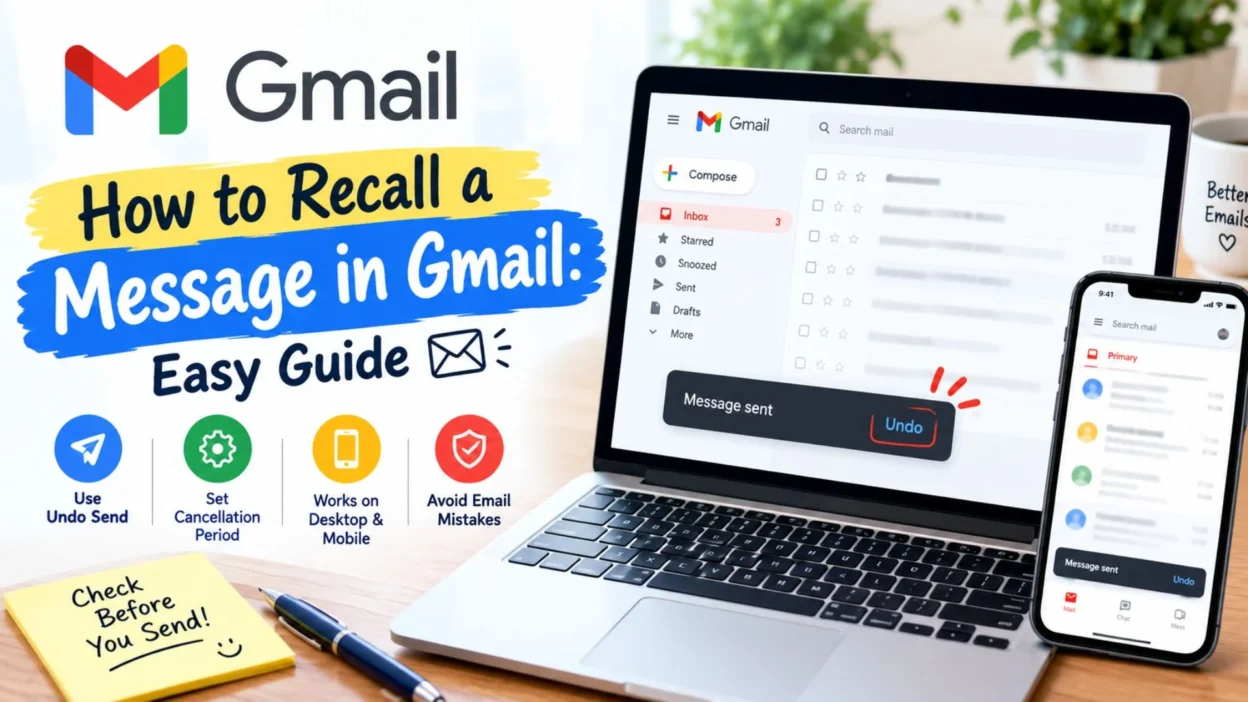
We have all had that moment when we click Send and immediately notice a typo, the wrong attachment, or an email that went to the wrong person. That instant of panic can make you wonder how to recall a message in Gmail before the recipient sees it.
Gmail does offer a way to stop a recently sent email, but it works differently from a traditional email recall. Gmail uses an “Undo Send” feature that gives you a short cancellation period immediately after sending. You can choose a cancellation period of 5, 10, 20, or 30 seconds in Gmail settings.
That short window can be enough to catch an accidental send and return to the message before it goes out. However, once the cancellation period ends, Gmail does not provide a standard way to pull a delivered email back from the recipient’s inbox. Understanding this difference can save you time when you need to act quickly.
How to Recall a Message in Gmail 📩
Gmail calls this feature “Undo Send.” It lets you cancel a recently sent email during the cancellation period you have selected.
- Open Gmail and compose your email as usual.
- Add the recipient, subject, and message.
- Click Send.
- Look at the bottom-left area of the Gmail window for the “Message sent” notification.
- Click Undo before the cancellation period expires.
- Gmail will stop the send and return the message so you can edit it again.
The important part is timing. Once the Undo option disappears, the normal Gmail Undo Send window has ended.
How to Turn On Gmail Undo Send ⚙️
Setting up Undo Send before you need it is the easiest way to protect yourself from accidental emails. Gmail allows you to select a cancellation period of up to 30 seconds.
- Open Gmail on your computer.
- Click the Settings icon in the top-right corner.
- Select See all settings.
- Stay on the General tab.
- Find the Undo Send section.
- Open the Send cancellation period menu.
- Choose 5, 10, 20, or 30 seconds.
- Scroll to the bottom and click Save Changes.
Choosing 30 seconds gives you the longest available cancellation window. It can be especially useful if you regularly send important work emails, applications, documents, or messages with attachments.
What Happens When You Click Undo? 🔄
Clicking Undo during the cancellation period prevents the message from completing its send. Gmail then gives you the opportunity to continue working on the email.
- The sent notification appears after you click Send.
- The Undo option remains available during your selected cancellation period.
- Clicking Undo cancels the send.
- You can then review, edit, or discard the message.
- The available period can be set to 5, 10, 20, or 30 seconds.
This is why it is useful to think of Gmail’s feature as a short safety window rather than a traditional recall system.
Can You Recall a Gmail Message After 30 Seconds? ⏳
In normal Gmail use, you cannot recall an email after the Undo Send cancellation period has expired. Gmail’s official help documentation describes the feature as a short period immediately after sending, with a maximum selectable cancellation period of 30 seconds.
- The Undo option is available only during the cancellation period.
- Gmail lets you choose up to 30 seconds.
- After that window ends, the standard Undo Send feature is no longer available.
- Opening the sent message later does not create another recall window.
- Deleting the email from your Sent folder does not remove a copy that may already have reached the recipient.
For that reason, act immediately when you realize an email needs to be stopped.
Best Ways to Stop a Gmail Message Quickly 🚨
When you notice a mistake immediately after sending, speed matters. These simple steps can help you make the most of Gmail’s cancellation window.
- Keep an eye on the confirmation message that appears after sending an email.
- Click “Undo” as soon as you notice a typo, wrong recipient, missing attachment, or other mistake.
- Set your Undo Send cancellation period to 30 seconds so you have the longest available window.
- Review important emails carefully before sending, especially when they contain private information or important files.
- Double-check the recipient’s address before clicking Send.
- Check attachments before sending documents, photos, resumes, or other files.
- Read the subject line one more time to make sure it matches the message.
- Use the Undo option immediately instead of waiting to decide whether you need to change the email.
- After clicking Undo, review the message again before sending it for the second time.
How to Recall a Message in Gmail on Your Phone 📱
Gmail also provides an Undo option when you send an email through the mobile app. The key is to act while the cancellation option is still visible.
- Open the Gmail app on your phone.
- Write your email and tap the Send button.
- Watch for the confirmation message that appears after the email is sent.
- Tap “Undo” immediately if you want to cancel the send.
- Gmail will return you to the message so you can make changes before sending it again.
- If the Undo notification disappears, the short cancellation period has ended.
- For important emails, take a moment to check the recipient, subject, message, and attachments before sending.
What If You Sent the Email to the Wrong Person? 😬
Sending an email to the wrong person can feel stressful, especially when the message contains sensitive information or was intended for someone else. If you notice the mistake immediately, use Undo as quickly as possible.
- Click “Undo” immediately if the option is still available.
- Correct the recipient before sending the message again.
- If the cancellation window has already ended, Gmail’s normal Undo Send feature cannot retrieve the delivered message.
- Consider sending a short follow-up asking the recipient to disregard the earlier email.
- If the message contained sensitive information, take appropriate steps based on the type of information involved.
- Avoid relying on deleting the message from your Sent folder as a way to remove it from another person’s inbox.
Can You Recall an Email in Gmail Before It Is Read? 📧
Gmail’s regular Undo Send feature is based on a short cancellation period, not on whether the recipient has opened the email.
- You can use Undo while the cancellation period is active.
- The feature does not provide a later recall simply because the recipient has not opened the message.
- Once the cancellation period expires, the normal Gmail recall option is no longer available.
- Reading status does not extend the cancellation period.
- Acting quickly after sending is therefore the most important step.
Housekeeping After Sending an Email 🧹
Sometimes the best solution is not recalling the email but fixing the situation with a clear follow-up. A calm response can make a small sending mistake much easier to handle.
- Send a correction if you made a simple spelling or information mistake.
- Send the missing attachment in a new email if necessary.
- Clarify the correct recipient if the original message was sent to the wrong person.
- Keep your follow-up short when the mistake is minor.
- For professional communication, acknowledge the mistake without adding unnecessary details.
- Review the corrected message carefully before sending it again.
Gmail Recall vs. Undo Send: What’s the Difference? 🔍
The terms “recall” and “undo send” are often used interchangeably, but they do not describe exactly the same thing in Gmail.
- “Undo Send” gives you a short period to cancel an email immediately after pressing Send.
- A traditional recall feature would attempt to retrieve a message after it has already been sent.
- Gmail’s standard Undo Send feature is designed around delaying the send for a short cancellation period.
- The maximum cancellation period available in Gmail is 30 seconds.
- Once that period ends, the standard Undo option is no longer available.
Understanding this difference is important when searching for how to recall a message in Gmail. The practical solution is to use Undo Send as quickly as possible after sending.
Tips to Avoid Email Mistakes in Gmail ✅
A few simple habits can reduce the chance of needing to recall an email in the first place.
- Add the recipient after finishing the message when you are writing something sensitive.
- Check the To, Cc, and Bcc fields before sending.
- Confirm that the attachment is actually included.
- Read the subject line before sending.
- Look for obvious spelling or formatting mistakes.
- Make sure dates, names, numbers, and links are correct.
- Use the 30-second Undo Send period for an extra safety check.
- For important professional emails, pause briefly before pressing Send.
One-Line Tips for Recalling a Gmail Message ⚡
These quick reminders make it easier to remember what to do when you send an email by mistake.
- Click “Undo” immediately after sending.
- Set Gmail Undo Send to 30 seconds.
- Check the recipient before sending.
- Review attachments before clicking Send.
- Do not wait if you notice a mistake.
- Gmail’s Undo Send works only for a short period.
- Once the cancellation window ends, the normal Undo option disappears.
- Deleting a sent email does not remove it from the recipient’s inbox.
- Review important emails before sending them.
- Use a follow-up message when a correction is needed.
Best Gmail Recall Tips for Captions 📱✨
These short lines can work as social captions, reminders, or quick posts about common Gmail mistakes.
- Sent too soon? Hit Undo! 📧
- Double-check before you send.
- Thirty seconds can save an email mistake.
- Wrong attachment? Undo it fast!
- One click can send it, but one quick Undo can stop it.
- Gmail mistake? Act quickly.
- Think twice, click once.
- Check the email before it leaves your inbox.
- The Undo button is your email safety net.
- Send smart, check twice. 💻
Copy-Paste Ready Gmail Help Messages 📋
Use these simple messages when you need to explain an email mistake or ask someone to ignore an earlier message.
- Please disregard my previous email. I noticed an error and will send the corrected version shortly.
- Please ignore the earlier message. I sent it before completing the necessary changes.
- Kindly disregard my previous email. I accidentally sent an incomplete version and will follow up with the correct information.
- Please ignore the previous message and refer to my latest email for the updated information.
- I noticed a mistake in my previous email. Please disregard it while I send the corrected version.
- Sorry for the confusion. The previous email was sent accidentally. Please ignore it.
- Please disregard the earlier message. I will send the correct attachment in a separate email.
FAQs About How to Recall a Message in Gmail 💬
Can I recall a message in Gmail?
Gmail’s standard solution is Undo Send. It gives you a short cancellation period immediately after sending, allowing you to stop the email before the send is completed.
How long do I have to recall an email in Gmail?
You can set Gmail’s Undo Send cancellation period to 5, 10, 20, or 30 seconds. Choosing 30 seconds provides the longest available window.
Can I recall an email after 30 seconds?
The standard Gmail Undo Send feature cannot be used after its cancellation period has expired. If the option has disappeared, you will need to handle the situation with a correction or follow-up email.
Does deleting a sent Gmail message recall it?
No. Deleting an email from your Sent folder does not normally remove a message that has already reached another person’s inbox.
Can I recall a Gmail message from my phone?
Yes. When you send an email through the Gmail app, look for the Undo option immediately after sending. Tap it while the cancellation option is available.
Conclusion 📧❤️
Knowing how to recall a message in Gmail can save you from a lot of unnecessary stress when you accidentally send an email too soon. The key thing to remember is that Gmail’s standard solution is Undo Send, which gives you a short window to cancel the send before the message goes through.
For the best protection, set the cancellation period to 30 seconds and make a habit of checking recipients, attachments, subject lines, and important details before sending. When you notice a mistake, act immediately rather than waiting until the cancellation window disappears.
Once the Undo option is gone, the normal Gmail feature cannot pull a delivered message back. At that point, a clear correction or polite follow-up may be the simplest way to handle the situation.
A few seconds of careful checking can prevent a much bigger email mistake. 📩✨

Noah Anderson is a content writer at MessagesfyHub, specializing in heartfelt messages, wishes, quotes, and greetings for every occasion. He is passionate about creating meaningful, easy-to-share content that helps people express their emotions with the right words.