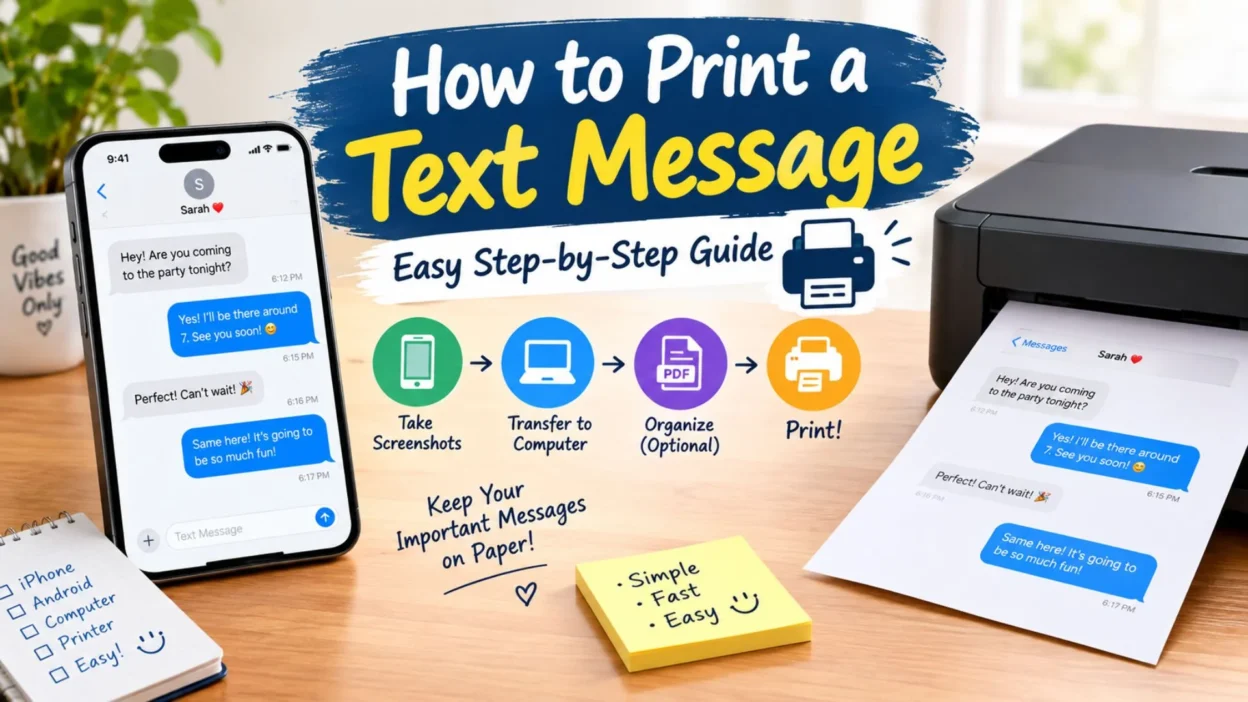
Sometimes a text message is more important than it seems. You may need a printed conversation for your records, a work matter, a special memory, or simply because you prefer having a physical copy. The good news is that learning how to print a text message does not have to be complicated.
The exact process depends on whether you use an iPhone or Android phone and what kind of printer you have. In many cases, you can print directly from your phone. If that option is unavailable, you can save the conversation as screenshots, send it to a computer, or use another convenient method.
This guide explains several practical ways to print text messages while keeping the conversation clear and readable. You will also find simple solutions for longer conversations, multiple screenshots, and situations where your phone does not show a print option.
Top Ways to Print a Text Message 🖨️
There is more than one way to turn a text conversation into a printed page. Choose the method that matches your phone, printer, and the length of the conversation.
- Print directly from your phone: If your messaging app supports printing, open the conversation, choose the sharing or options menu, and look for a Print option.
- Use screenshots: Take screenshots of the messages you need, then print the images from your phone or computer.
- Save the conversation to a computer: Transfer screenshots or exported message files to your computer and print them using a connected printer.
- Print through email: Send screenshots or a saved conversation to yourself by email, open the email on a computer, and print the attached images or document.
- Use cloud storage: Upload screenshots to a service such as Google Drive or iCloud, open them on another device, and print them from there.
- Use a wireless printer: If your printer supports Wi-Fi or mobile printing, your phone may be able to send the screenshots directly to it.
- Use a print shop: If you do not have a printer at home, save the messages as images or a PDF and take the files to a local printing service.
- Create a PDF first: Converting screenshots or copied messages into a PDF can make longer conversations easier to organize before printing.
How to Print a Text Message on iPhone 📱🍎
On an iPhone, there is not always a simple Print button inside the Messages app. However, screenshots provide one of the easiest solutions for printing a conversation.
- Open the Messages app: Find the conversation containing the text messages you want to print.
- Scroll to the right section: Move through the conversation until the messages you need are visible on the screen.
- Take a screenshot: Press the appropriate iPhone buttons together to capture the conversation.
- Capture additional screenshots: For a longer conversation, continue taking screenshots until you have everything you need.
- Open your Photos app: Find the screenshots you just captured.
- Select the screenshots: Tap Select and choose all the images you want to print.
- Open the Share menu: Tap the Share icon after selecting the screenshots.
- Choose Print: If your iPhone detects a compatible printer, the Print option should appear among the available actions.
- Select your printer: Choose the printer you want to use from the available printer list.
- Choose your copies: Select how many copies you want and adjust other available printing options.
- Tap Print: Confirm the job and wait for your printer to produce the pages.
- Check the printed pages: Make sure every important part of the conversation is visible and readable.
What if the Print option is missing on iPhone?
If you cannot find Print, do not worry. Screenshots can still be transferred to another device and printed from there.
- Send screenshots to yourself: Use email, AirDrop, cloud storage, or another file-sharing method.
- Open the images on a computer: A larger screen makes it easier to arrange the screenshots before printing.
- Combine screenshots into a PDF: This can help keep a long conversation together instead of printing each image separately.
- Print the PDF or images: Use your computer’s normal printing option once the files are ready.
How to Print a Text Message on Android 🤖
Android phones offer different messaging apps and menus, so the exact options can vary between devices. Screenshots are again one of the simplest methods when direct printing is unavailable.
- Open your messaging app: Find the conversation you want to print.
- Locate the messages: Scroll to the part of the conversation you need.
- Take a screenshot: Use your phone’s screenshot shortcut to capture the visible messages.
- Capture the entire conversation: Take additional screenshots if the conversation extends beyond one screen.
- Open your Gallery or Photos app: Find the screenshots you created.
- Select the images: Choose all screenshots that belong to the conversation.
- Tap Share: Look through the available sharing options.
- Find the Print option: Some Android phones show a printer option directly through the sharing menu.
- Choose your printer: Select a compatible wireless printer if one is available.
- Adjust the settings: Select paper size, copies, orientation, or other available options.
- Start printing: Confirm the print job and check the pages when finished.
- Use a computer if necessary: If your phone does not provide a printing option, transfer the screenshots to a computer and print them there.
How to Print Text Messages From Screenshots
Screenshots are particularly useful when your messaging app does not provide an export or print feature. They also let you choose exactly which parts of a conversation appear on paper.
- Keep the screenshots in chronological order: This makes the printed conversation easier to follow.
- Avoid unnecessary screenshots: Only capture the messages you actually need.
- Check the edges: Make sure no important words are cut off.
- Use readable text size: Avoid editing screenshots so heavily that the messages become difficult to read.
- Crop carefully: Remove unnecessary parts of the screen without removing dates, names, or other useful information.
- Keep timestamps visible when important: Dates and times can provide useful context for a conversation.
- Include the contact name: Keeping the sender or recipient visible can make the printed conversation easier to understand.
- Review everything before printing: A quick check can prevent missing pages or repeated screenshots.
- Arrange the images properly: Place screenshots in the correct order when preparing them on a computer.
- Consider PDF format: A PDF can keep multiple screenshots together in one organized file.
How to Print a Long Text Message Conversation
Long conversations require a little more preparation. Printing every screenshot without checking the order can result in confusing or incomplete pages.
- Start from the correct point: Decide exactly where the conversation should begin.
- Move through the conversation gradually: Capture screenshots without skipping sections.
- Name the files if using a computer: Simple names can make it easier to keep screenshots organized.
- Put the screenshots in order: Arrange them from the earliest message to the latest one.
- Check for duplicates: Remove screenshots that accidentally show the same section twice.
- Look for missing sections: Compare the screenshots while scrolling through the original conversation.
- Use a PDF when possible: Combining the images into one document can make the final printout easier to manage.
- Choose portrait or landscape orientation: Select the format that makes the messages easiest to read.
- Preview before printing: A print preview can reveal cut-off text or poorly positioned images.
- Print a test page: For an important conversation, checking one page first can save paper and ink.
- Keep a digital backup: Save the original screenshots or PDF before sending the document to a printer.
- Protect private information: Review the screenshots for phone numbers, addresses, passwords, or other details you do not want printed.
How to Print a Text Message From a Computer 💻🖨️
Using a computer can be easier when you need to print a long conversation. A larger screen also makes it simpler to organize screenshots, check details, and preview the final pages.
- Transfer your screenshots: Move the text-message screenshots from your phone to your computer using email, cloud storage, a cable, or another file-sharing method.
- Create a folder: Keep all the screenshots for the conversation in one folder so they are easy to find.
- Arrange the images: Put the screenshots in chronological order before printing.
- Open the images: Use your computer’s default photo viewer or another image application.
- Select the Print option: Right-click an image or use the application’s File menu to find printing options.
- Choose the correct printer: Select the printer connected to your computer.
- Adjust the layout: Choose a suitable paper size and image layout so the messages remain readable.
- Preview the pages: Check how each screenshot will appear before starting the print job.
- Print the conversation: Send the final document or images to your printer.
How to Print Text Messages as a PDF
Saving text messages as a PDF can be useful when you want one organized file instead of several separate screenshots. It also makes the conversation easier to store or share digitally.
- Collect your screenshots: Make sure every required part of the conversation is included.
- Put them in order: Arrange the images from the beginning of the conversation to the end.
- Combine the images: Use a document or PDF application that allows multiple images to be placed into one file.
- Check each page: Make sure the text is readable and nothing important has been cropped.
- Save the document: Give the PDF a clear file name that helps you identify the conversation later.
- Open the finished PDF: Review the complete file before printing.
- Use Print Preview: Confirm that pages are not rotated incorrectly or cut off.
- Print the PDF: Select your printer and send the document to print.
- Keep the original PDF: Saving a digital copy gives you a backup if you need to print the conversation again.
How to Print Text Messages From Email
Email can provide a convenient bridge between your phone and printer. This method is especially helpful if your phone does not support direct printing.
- Take screenshots of the messages: Capture each section you need.
- Email the screenshots to yourself: Attach the images to an email and send them to an account you can access on your computer.
- Open the email: Sign in from your computer and locate the message.
- Download the attachments: Save the screenshots to your computer.
- Organize the files: Put them in the correct order before printing.
- Print the images: Open each file and use the computer’s print function.
- Create a PDF first: For a long conversation, combining the images into a PDF may produce a cleaner result.
- Review the final pages: Check that all important messages are visible.
How to Print Text Messages Without a Wireless Printer
You do not necessarily need a wireless printer to print a text conversation. A computer and a basic wired printer can also work.
- Save screenshots on your phone: Capture the messages you need.
- Transfer the images to your computer: Use a USB cable, email, cloud storage, or another available method.
- Connect the printer: Attach your printer to the computer using its supported connection.
- Open the screenshots: Check the images before printing.
- Select Print: Use the normal print command on your computer.
- Choose the connected printer: Confirm that the correct device is selected.
- Set the paper options: Choose the paper size and orientation that best display the conversation.
- Print the pages: Start the print job after checking the preview.
How to Print Text Messages for Legal or Official Records
Some people need printed messages for an official matter, dispute, workplace issue, insurance claim, or legal situation. In these cases, simply printing a screenshot may not provide all the context someone needs.
- Keep the original messages: Do not rely only on printed copies.
- Preserve the conversation: Avoid deleting or changing relevant messages before creating your records.
- Include useful context: Depending on the situation, names, dates, times, and surrounding messages may matter.
- Keep screenshots unedited: Editing an image can make it harder to establish what the original conversation looked like.
- Save digital copies: Store the original screenshots or other records in a secure location.
- Keep the conversation in order: Chronological records are easier to understand.
- Print complete sections when appropriate: Removing surrounding messages may leave important context unclear.
- Use multiple formats: Keeping both digital and printed copies can provide additional backup.
- Ask the appropriate professional: If the messages are being used for a legal proceeding, follow the instructions provided by your lawyer, court, agency, or other relevant authority.
Common Problems When Printing Text Messages
Printing a conversation can sometimes produce unexpected results. Most problems are related to missing print options, poor image quality, incorrect order, or text that is too small.
- No Print option appears: Save screenshots and print them from a computer instead.
- The text looks too small: Try a larger layout or use a document that places one screenshot per page.
- Part of the conversation is cut off: Check the image and print preview before printing.
- Pages appear out of order: Rename or manually arrange the screenshots before printing.
- The printer cannot be found: Confirm that the phone or computer is connected to the correct printer or network.
- Images look blurry: Use the original screenshots rather than repeatedly saved or compressed copies.
- There are too many pages: Combine several screenshots into a properly formatted document when readability allows.
- Important information is missing: Compare the printed pages with the original conversation before considering the job complete.
- The conversation is extremely long: Break it into logical sections and organize the pages carefully.
Best Practices Before You Print a Text Message
A few minutes of preparation can make the final printout much cleaner. This is especially helpful when the conversation is lengthy or important.
- Decide what you actually need: Avoid printing unrelated parts of the conversation.
- Check every screenshot: Make sure no message is accidentally missing.
- Keep the correct order: Earlier messages should generally appear before later ones.
- Preserve dates and times when relevant: These details can provide useful context.
- Check names and contact information: Make sure the sender or recipient is identifiable when necessary.
- Protect private information: Remove or avoid printing sensitive details that are not needed.
- Preview everything: Never assume the printed page will look exactly like the phone screen.
- Keep a backup: Save the digital version before printing.
- Use clear file names: This makes future printing much easier.
- Print only after reviewing: A final check can prevent wasted paper, ink, and time.
Quick Method: How to Print a Text Message
If you only need a simple overview, this is the basic process to follow.
- Open the text-message conversation.
- Find the messages you want to print.
- Take screenshots of the conversation.
- Capture additional screenshots for longer conversations.
- Keep the screenshots in chronological order.
- Transfer them to a computer if direct phone printing is unavailable.
- Combine them into a PDF if you want one organized file.
- Open the images or PDF.
- Check the print preview.
- Select your printer and paper settings.
- Print the conversation.
- Keep a digital backup of the files.
Best Ways to Print Text Messages Clearly
A good printout should be easy to read and simple to understand. Whether you are printing a short exchange or a lengthy conversation, a little organization can make a big difference.
- Use high-quality screenshots: Clear images make the text easier to read on paper.
- Choose the right orientation: Landscape can work well when message bubbles are wide, while portrait is often suitable for normal conversations.
- Leave enough space around the images: Avoid layouts that make the messages feel cramped.
- Check the print preview: Look for missing text, cut-off edges, or unexpected blank pages.
- Keep pages in sequence: Chronological order helps readers follow the conversation naturally.
- Use readable paper settings: Select options that preserve the clarity of small text.
- Avoid unnecessary editing: Keep the original appearance whenever possible.
Best Text Message Printing Options for Captions
If you are printing a special conversation, memory, or meaningful message for a scrapbook, card, or keepsake, these short lines can accompany the printed messages.
- “Some conversations are too special to leave only on a screen. 💙”
- “A few words can hold years of memories.”
- “Printed memories from a conversation worth keeping. ✨”
- “Not every message belongs in the chat forever—some belong on paper.”
- “A simple conversation, now turned into a lasting memory.”
- “These little messages mean more than they ever seemed to at the time.”
- “From a phone screen to a memory I can hold.”
- “Some words deserve a permanent place outside the inbox.”
- “A conversation saved today can become a memory tomorrow.”
Copy-Paste Ready Guide for Printing Text Messages
When you need a quick reminder of what to do, save this simple checklist. It works as a basic starting point for most phones and printing setups.
- Open the conversation: Find the text-message thread you want to print.
- Capture the messages: Take screenshots of each relevant section.
- Review the images: Make sure the screenshots include all the necessary messages.
- Arrange them: Put the images in chronological order.
- Transfer them: Send the screenshots to a computer if your phone cannot print directly.
- Create a PDF: Combine the screenshots into one document when you have a long conversation.
- Check privacy: Remove or avoid unnecessary personal information before printing.
- Preview the document: Make sure every page looks correct.
- Select the printer: Choose your connected or wireless printer.
- Print the final copy: Start the print job after checking all settings.
- Save a backup: Keep the original screenshots or PDF in a safe location.
FAQs About How to Print a Text Message
Can I print a text message directly from my phone?
Yes, depending on your phone, messaging app, and printer. If direct printing is not available, screenshots are a simple alternative. You can then print the images directly or transfer them to a computer.
How do I print an entire text conversation?
For a long conversation, capture screenshots of every section, keep them in chronological order, and combine them into a PDF or document. Review the pages before printing to make sure nothing is missing.
Can I print text messages without a printer at home?
Yes. Save the messages as screenshots or a PDF and take the digital file to a local print shop. You can also use a friend’s or workplace printer if appropriate.
Can I print text messages from an iPhone?
Yes. Screenshots are one of the easiest methods. Depending on your setup, you may also be able to send the screenshots to a compatible printer or transfer them to a computer first.
Can I print text messages from Android?
Yes. Capture screenshots of the conversation and use your phone’s available printing options. If direct printing is unavailable, transfer the screenshots to a computer and print them from there.
Conclusion
Knowing how to print a text message can be useful when an important conversation needs to move from your phone to a physical page. Whether you are saving a special memory, keeping personal records, or preparing documents for an important situation, screenshots provide a simple starting point for most people.
For short conversations, direct printing may be all you need. Longer exchanges usually benefit from organizing screenshots into a PDF before printing. Always review the pages carefully, keep the messages in the correct order, and protect private information that does not need to appear on paper.
Most importantly, keep a digital copy of anything important before printing it. That way, you have another version if the printed pages are lost or damaged.
Once you understand the basic process, how to print a text message becomes much easier. Choose the method that fits your device, organize the conversation carefully, and turn those important messages into a clear, useful printed record.

Noah Anderson is a content writer at MessagesfyHub, specializing in heartfelt messages, wishes, quotes, and greetings for every occasion. He is passionate about creating meaningful, easy-to-share content that helps people express their emotions with the right words.