Sending a Facebook message by mistake can feel uncomfortable. Maybe you sent it to the wrong person, noticed a spelling error, shared something too personal, or changed your mind moments after pressing the send button. Whatever happened, you probably want to know whether you can take that message back before the other person reads it.
The good news is that Facebook Messenger provides an option to unsend messages in many conversations. This feature allows you to remove a message for everyone in the chat, although the other person may already have seen it or received a notification.
Learning how to unsend Facebook message content can help you handle awkward moments with less stress. Whether you use Messenger on your phone or computer, the process is generally straightforward once you know where to look.
In this guide, you’ll discover practical steps, useful tips, and answers to common questions about unsending Facebook messages. You’ll also learn the difference between removing a message for everyone and deleting it only from your own inbox.
Top Ways to Unsend Facebook Messages 📱
If you have sent something you wish you could take back, Messenger gives you a simple way to manage that situation. The exact menu may vary slightly depending on your device and app version.
- 📩 I sent the wrong message. Can I take it back?
- 🔒 I shared something personal and want to remove it.
- 😅 I noticed a typo after pressing send.
- 💬 I accidentally messaged the wrong person.
- 🙈 I sent a message before I was ready to explain myself.
- ✍️ I want to correct something I said earlier.
- 📱 I need to unsend a message from my phone.
- 💻 I want to remove a message using Facebook on my computer.
- 🗑️ I want to understand the difference between deleting and unsending.
- ❤️ I sent an emotional message and now want to reconsider it.
How to Unsend a Facebook Message for Everyone
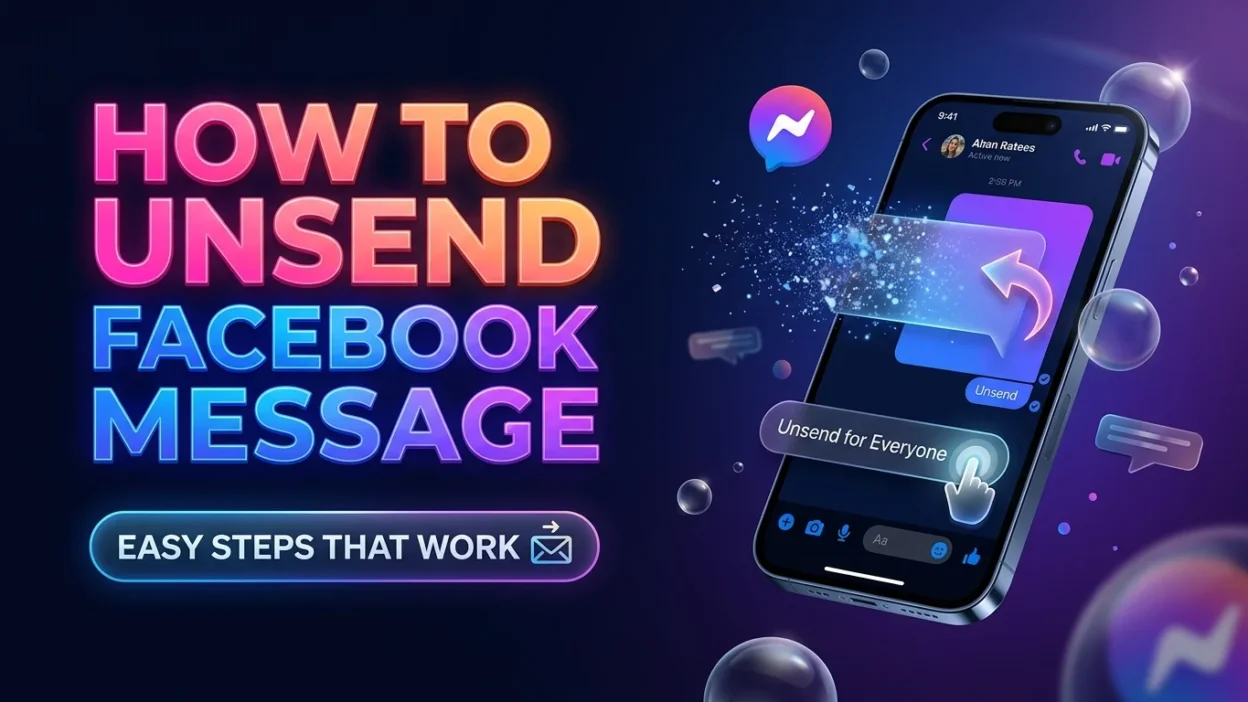
Follow these general steps to remove a sent message from both sides of a conversation.
- 📱 Open the Messenger app or Facebook website.
- 💬 Open the conversation containing the message.
- 👆 Press and hold the message on a phone, or open its options menu on a computer.
- ⚙️ Look for More, Remove, or a similar option.
- 🗑️ Choose Unsend for everyone or the equivalent option if it appears.
- ✅ Confirm your choice if Messenger asks you to do so.
Once the action is completed, the original message should no longer be visible in the conversation for participants. However, the recipient may have already read it, seen a notification preview, or captured a screenshot.
Unsend a Message Without Deleting the Whole Conversation
You don’t have to remove an entire chat just because one message was sent by mistake. Messenger’s message-level removal option lets you target a specific message.
- 🎯 Find the exact message you want to remove.
- 🔍 Check the available removal options carefully.
- 💬 Select the option that removes the message for everyone, if available.
- 🧹 Leave the rest of the conversation untouched.
This approach is useful when you want to correct one mistake while keeping the rest of your chat history.
Short Tips for Unsending Facebook Messages ✨
Sometimes you don’t need a long explanation. These quick reminders can help you make the right choice before removing a message.
- ⚡ Act quickly if you realize you’ve sent something by mistake.
- 🔐 Check whether the option says “for everyone.”
- 👀 Remember that the recipient may already have seen the message.
- 📲 Update Messenger if its menus look different.
- 🧠 Think carefully before confirming removal.
- 💻 Try the conversation on another supported device if the option is missing.
- 🗑️ Don’t confuse deleting a chat with unsending an individual message.
- 📸 Remember that screenshots and saved copies may remain.
- 🔔 Keep in mind that unsending may not erase notification previews.
- 💬 Send a brief clarification if the recipient has already seen the message.
Short Messages to Send After Unsending
If the other person notices that a message disappeared, a simple explanation can prevent confusion. Choose wording that fits your relationship and the situation.
- 😊 “Oops, I sent that by mistake!”
- 💬 “Please ignore my previous message.”
- ✍️ “I wanted to correct what I sent earlier.”
- 🙈 “That message wasn’t meant for this chat.”
- 😅 “Sorry, wrong message!”
- 📱 “I noticed a mistake and removed it.”
- 🤝 “Let me explain that a little better.”
- 💛 “I changed my mind about sending that.”
- 🧹 “I removed the message because it wasn’t right.”
- 🌿 “Sorry for the confusion. Let me start again.”
Best Practices Before You Unsend
Removing a message can solve a small problem, but it cannot guarantee that the recipient never saw it. A few sensible habits can make the process less stressful.
- 🔎 Review the message: Confirm that you selected the correct one before removing it.
- 🔒 Protect sensitive information: If you accidentally shared a password or other confidential detail, change or secure it rather than relying only on unsending.
- 💭 Avoid assumptions: A removed message doesn’t prove that the other person never read it.
- 💬 Communicate clearly: If the message caused confusion, a short explanation may be more helpful than silence.
- 🛡️ Check account security: If private information was exposed, take appropriate steps to protect your accounts.
Remember, unsending is a useful Messenger feature, but it isn’t a substitute for account security or careful communication.
Best Facebook Messages to Share After Unsending 💬
Sometimes, removing a message is only the first step. If the other person has already noticed it, a thoughtful follow-up can help you explain yourself without making the situation awkward.
- 💬 “I removed that message because I wanted to say it differently.”
- 😊 “Sorry, I sent that before checking it properly.”
- 🙈 “That wasn’t meant to be sent just yet.”
- ✨ “Let me put my thoughts together and explain it better.”
- 🤝 “I didn’t mean to create any confusion.”
- 💛 “Please don’t misunderstand my previous message.”
- 📩 “I’ll send you the correct information in a moment.”
- 😅 “My fingers were faster than my brain!”
- 🌿 “I wanted to make sure my words came across the right way.”
- 💙 “Nothing serious, I just changed my mind about that message.”
- 📝 “I noticed a mistake and decided to fix it.”
- 🙏 “Sorry about that little mix-up.”
- 💭 “I had a better way to explain what I meant.”
- 😄 “Wrong message, right person!”
- 💌 “Let me start again with what I actually wanted to say.”
One-Line Facebook Message Tips ⚡
These quick reminders are useful when you need to unsend a message without wasting time searching through menus or making the situation more complicated.
- 📱 Open Messenger and find the exact message.
- 👆 Press and hold the message on your phone.
- 💻 On a computer, open the message’s options menu.
- 🗑️ Choose the available unsend or remove option.
- 🔍 Read the confirmation carefully before proceeding.
- 🔒 Select the option for everyone if you want to remove the message for all chat participants.
- 👀 Remember that the recipient might already have seen it.
- 📲 Check the app version if your menu looks different.
- 💬 Explain the mistake briefly if necessary.
- 🛡️ Change exposed passwords instead of relying on message removal alone.
- 🧠 Pause before sending another message in a hurry.
- ✨ Review sensitive details before sharing them in future conversations.
Best Captions About Unsending Facebook Messages 📸
Looking for a short caption about a message you wish you could take back? These options work for social posts, status updates, or relatable content about messaging mistakes.
- 😅 Some messages are better left unsent.
- 💭 Sent too soon, regretted too quickly.
- 📩 If only real life had an unsend button.
- 🙈 One click can change the whole conversation.
- 💬 Sometimes silence says it better.
- ✨ Learning to think before I send.
- 🧠 My brain needed a few more seconds.
- 💙 Not every thought needs to become a message.
- 🌿 A little pause can prevent a big misunderstanding.
- 😂 The unsend button deserves an award.
- 📱 Message sent. Panic activated.
- 🤍 Some words deserve a second thought.
Copy-Paste Ready Messages for Messenger 📋
If you need a quick response after removing a message, these short texts are easy to copy and adapt to your situation.
- “Sorry, that message was sent by mistake.”
- “Please ignore the message I just removed.”
- “I wanted to correct something before you read it.”
- “Let me send that again properly.”
- “I accidentally sent that to the wrong chat.”
- “I changed my mind about sharing that.”
- “Sorry for the confusion. Here’s what I meant.”
- “That message wasn’t complete, so I removed it.”
- “I noticed an error and wanted to fix it.”
- “No worries, I just needed to correct my message.”
- “I sent that too quickly. My apologies.”
- “Let me explain it more clearly.”
- “I didn’t want my words to be misunderstood.”
- “That was an unfinished thought. I’ll send the complete version.”
- “Sorry, I clicked send before I was ready.”
Important Things to Know Before Unsending a Message 🔐
Unsending a Facebook message can be helpful, but it’s important to understand what the feature does and what it cannot guarantee.
- Unsend for everyone: This option removes the selected message from the conversation for everyone, when available.
- Delete for you: This removes the message from your own view but does not remove it from the other person’s chat.
- Notifications: The recipient may have already seen a notification preview, even if the message is later unsent.
- Screenshots: Removing a message cannot erase screenshots or copies someone has already saved.
- Group conversations: Other participants may have seen the message before you removed it.
- Privacy: If the message contained sensitive information, take additional steps to protect it.
Always check the wording of the option shown in Messenger because features and menus can change between devices and app versions.
Frequently Asked Questions ❓
Can I unsend a Facebook message after it has been read?
Yes, Messenger may allow you to unsend a message even after it has been read. However, unsending does not make the recipient forget what they saw or remove any screenshots they may have taken.
How do I unsend a Facebook message on my phone?
Open Messenger, enter the conversation, press and hold the message, and look for the unsend or remove option. Choose the option for everyone if it is available.
Does Facebook notify someone when I unsend a message?
Messenger’s interface may show that a message was removed, and the recipient may notice that it disappeared. They might also have seen a notification preview before it was removed.
What is the difference between unsending and deleting a message?
Unsending removes a message for everyone when that option is available. Deleting a message for yourself removes it only from your view, leaving it visible to other participants.
Can I recover a message after unsending it?
You generally should not expect to restore an unsent message through Messenger. If the content is important, check whether you have a legitimate saved copy, screenshot, or notification record.
Final Thoughts 💙
Sending the wrong message happens to almost everyone at some point. You might be rushing, distracted, or simply unsure about what you wanted to say. Fortunately, learning how to unsend Facebook message content can help you correct mistakes and manage conversations more confidently.
The most important thing is to select the correct removal option. If you want the message removed for everyone, make sure you choose that option rather than deleting it only from your own inbox. Also, remember that unsending cannot guarantee complete privacy if the recipient has already read the message or saved a copy.
If your message caused confusion, a short and honest explanation can often resolve the situation better than worrying about it. For future conversations, take a moment to review sensitive messages before sending them.
Save this guide so you can quickly find the steps whenever you need them. One mistaken message doesn’t have to ruin a conversation. 📩

Noah Anderson is a content writer at MessagesfyHub, specializing in heartfelt messages, wishes, quotes, and greetings for every occasion. He is passionate about creating meaningful, easy-to-share content that helps people express their emotions with the right words.