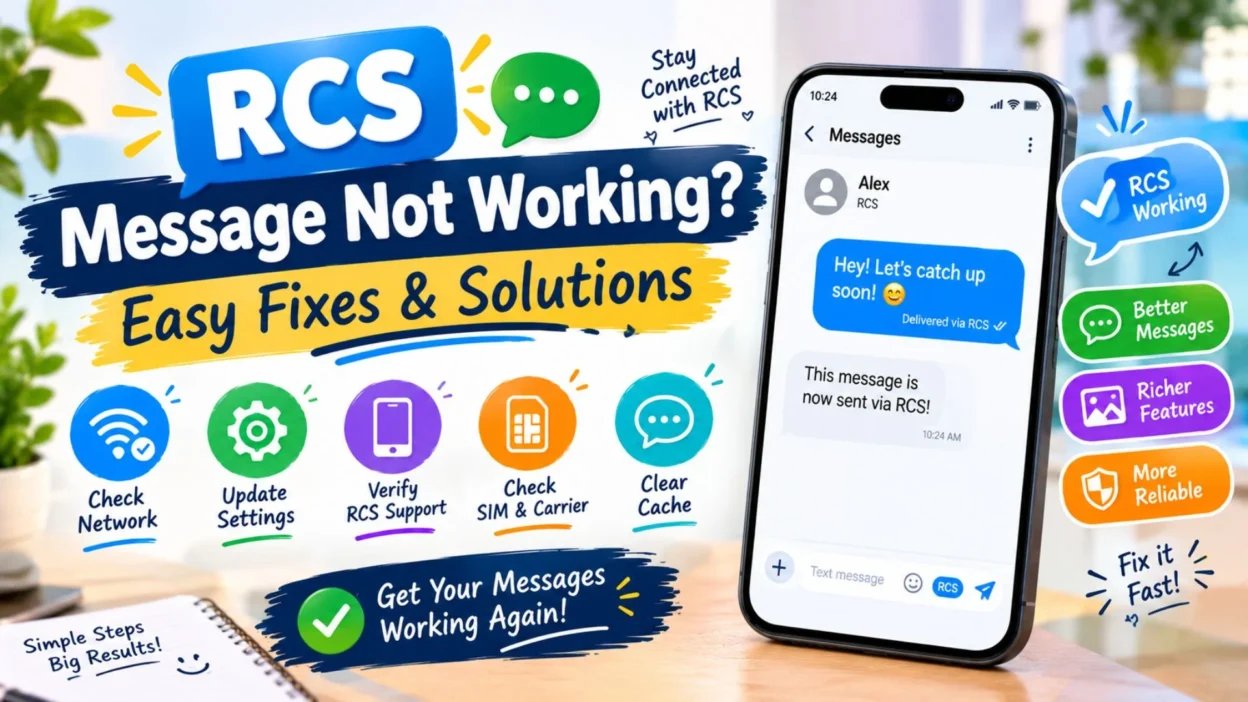
When RCS message not working becomes a problem, sending a normal text can suddenly feel much harder than it should. You may see messages stuck on sending, fail to deliver, or lose features such as read receipts, typing indicators, and high-quality media sharing.
RCS, or Rich Communication Services, is designed to provide a more modern messaging experience than traditional SMS. However, it depends on compatible devices, supported messaging services, an internet connection, and properly configured settings. If one of these stops working, your RCS chats may not function as expected.
The good news is that many RCS problems can be fixed with a few simple checks. This guide walks through the most common reasons RCS message not working appears and practical ways to get your chats working again.
Top Reasons RCS Message Is Not Working 📲
RCS problems can happen for several different reasons. Finding the likely cause first can make troubleshooting much easier.
- RCS chat features are turned off.
- Your phone has no reliable internet connection.
- Your messaging app needs an update.
- Your phone number is still verifying.
- RCS is not supported by your carrier or messaging setup.
- Google Messages is experiencing a temporary problem.
- Your device has recently changed SIM cards.
- Battery or data restrictions are affecting the app.
- The recipient does not have RCS enabled.
- Your RCS connection is temporarily unavailable.
- The messaging app has outdated or corrupted temporary data.
- Your device software needs an update.
- A temporary service issue is affecting RCS.
RCS Message Not Working on Android 🤖
RCS is most commonly associated with Android messaging, particularly through Google Messages. If RCS suddenly stops working, start by checking whether chat features are enabled.
- Open your messaging app.
- Go to the RCS or chat settings.
- Check whether RCS chat features are enabled.
- Confirm that your phone number is verified.
- Make sure you have Wi-Fi or mobile data.
- Update your messaging app if an update is available.
- Restart your phone.
- Try sending a message again.
If RCS still does not work, check whether the issue affects every conversation or only one contact.
Check Your RCS Chat Settings ⚙️
Incorrect settings are one of the easiest problems to overlook.
Open your messaging app’s settings and look for the section related to RCS, chat features, or messaging settings. The exact wording can vary depending on your device and app version.
Check that:
- RCS or chat features are enabled.
- Your phone number is correctly listed.
- Your connection status is active.
- Automatic verification is not waiting for action.
- Your messaging app has permission to use mobile data.
- Battery restrictions are not preventing the app from running normally.
If everything appears correct but RCS remains unavailable, restarting the phone can sometimes refresh the connection.
RCS Message Not Working Without Wi-Fi 📶
RCS does not require Wi-Fi specifically, but it does need an internet connection.
If Wi-Fi is unavailable, your phone can often use mobile data instead, provided your RCS setup and carrier support allow it.
Try these quick checks:
- Turn mobile data on.
- Turn Wi-Fi off temporarily.
- Check whether another app can access the internet.
- Move somewhere with better cellular coverage.
- Restart your mobile connection.
- Try sending an RCS message again.
If RCS works on Wi-Fi but not mobile data, the problem may be related to mobile data settings or your carrier connection.
RCS Message Not Working on Mobile Data 📡
If RCS works over Wi-Fi but stops working when you leave home, mobile data may be the issue.
Check whether:
- Mobile data is enabled.
- Your data plan is active.
- Your phone has a strong cellular signal.
- Data Saver is restricting your messaging app.
- Your messaging app is allowed to use mobile data.
- Your carrier connection is working normally.
You can also open a website using mobile data. If other internet services fail too, the issue may not be specific to RCS.
RCS Stuck on Connecting 🔄
One common problem is seeing an RCS status that remains stuck on connecting or verifying.
This can happen when the service cannot properly establish or verify the connection.
Try:
- Checking your internet connection.
- Restarting your phone.
- Opening your messaging app again.
- Checking your phone number.
- Installing available app updates.
- Waiting a little before repeatedly changing settings.
- Checking whether your SIM card is active.
- Switching between Wi-Fi and mobile data.
If the status remains unchanged for a long time, your RCS configuration may need additional troubleshooting.
RCS Messages Not Sending 💬
If your RCS messages remain stuck on sending, first determine whether the problem affects one person or everyone.
When messages fail with multiple contacts, check your connection and RCS settings.
If only one conversation is affected, the recipient may not currently have RCS available. Their device, messaging app, phone number, or connection could be responsible.
Before making major changes, try sending a simple message to another RCS contact.
RCS Message Not Delivered ❌
An RCS message may fail to deliver even when your phone appears connected.
Possible causes include:
- The recipient is offline.
- The recipient has disabled RCS.
- Their device does not currently support RCS.
- Your internet connection is unstable.
- RCS is temporarily unavailable.
- One of the devices is experiencing a messaging problem.
If the message is urgent, your messaging app may offer an option to send it as SMS or MMS instead, depending on your settings and available service.
RCS Not Working With One Contact 👤
If RCS works with other people but not with one specific contact, the issue may be specific to that conversation.
Check that:
- You have the correct phone number.
- The contact has RCS enabled.
- Their messaging service is working.
- You are using the correct conversation thread.
- Both devices have internet access.
Do not immediately assume that the other person has blocked you. A contact-specific RCS problem can have several technical causes.
RCS vs SMS: What Happens When RCS Fails?
These messaging methods use different technologies.
RCS uses internet connectivity to provide richer messaging features, while traditional SMS relies on cellular messaging services.
When RCS is unavailable, some messaging apps can fall back to SMS or MMS. Whether this happens automatically depends on your messaging app and settings.
This means an RCS problem does not always prevent you from communicating completely. You may still be able to send a standard text message while troubleshooting RCS.
Short RCS Message Not Working Fixes ⚡
If you need a quick solution, start with these basic checks before changing advanced settings. Many RCS problems are temporary and can disappear after reconnecting your phone.
- Check that Wi-Fi or mobile data is working.
- Restart your phone.
- Open your messaging app again.
- Confirm that RCS chat features are enabled.
- Check whether your phone number is verified.
- Update your messaging app.
- Turn Airplane Mode on briefly, then turn it off.
- Switch between Wi-Fi and mobile data.
- Try sending a message to another contact.
- Check whether your SIM card is active.
RCS Message Not Working After Changing Phones 📱
Changing phones can sometimes interrupt your RCS connection, especially if your previous device was still associated with your phone number.
Your new phone may need to verify the number and establish a fresh RCS connection.
- Make sure your SIM is active in the new phone.
- Use the same phone number associated with your messaging service.
- Open your messaging app and check RCS settings.
- Complete any verification process shown on screen.
- Update the messaging app.
- Restart the new phone.
- Give the service some time to reconnect.
If you no longer have access to your previous phone, you may need to deactivate the old RCS registration before the new device can connect properly.
RCS Not Working After Switching SIM Cards 🔄
A SIM change can affect how your phone number is associated with RCS.
If RCS stopped working immediately after changing your SIM, check your phone number and messaging settings first.
- Confirm that the new SIM is activated.
- Make sure calls and regular texts work.
- Check that the correct phone number appears in your messaging settings.
- Restart the phone after inserting the SIM.
- Verify your RCS status again.
- Update the messaging app if necessary.
Avoid repeatedly changing settings while the phone is still trying to verify your number. Give the connection a little time to update.
RCS Message Not Working After an Update 🛠️
Sometimes messaging behavior can change after an app or system update.
If RCS worked before an update but stopped afterward, try the basic troubleshooting steps first.
- Restart your phone.
- Open the messaging app again.
- Check RCS settings.
- Confirm that your internet connection is working.
- Check for another available app update.
- Make sure your messaging app has the required permissions.
- Test RCS with another contact.
A temporary software issue may resolve itself after restarting the device.
Check Whether Your Messaging App Is Updated 📲
An outdated messaging app can cause compatibility or connection problems.
Open your device’s app store and check whether your messaging app has an available update.
After updating:
- Restart the app.
- Check RCS settings.
- Confirm your phone number.
- Test an RCS conversation.
- Check whether delivery and read-status features return.
Keeping the app updated can also help prevent compatibility problems with newer messaging features.
Clear Temporary App Problems 🧹
Messaging apps can occasionally develop temporary glitches because of stored data or background processes.
Before making major changes, try closing the app completely and reopening it.
If your Android phone provides an option to clear the app’s cache, you can consider clearing the cache without deleting your conversations. The exact steps vary by device.
Afterward, open the messaging app and check whether RCS has reconnected.
Check Battery and Data Restrictions 🔋
Your phone may restrict an app’s background activity to save battery or mobile data.
If your messaging app cannot maintain its connection properly, RCS features may stop working.
Check whether:
- Battery Saver is limiting the messaging app.
- Data Saver is restricting its internet access.
- Background data is disabled.
- The app has been placed into a restricted battery category.
- Your phone is automatically putting the app to sleep.
Allowing the messaging app normal background access may help maintain its RCS connection.
RCS Message Not Working With iPhone Users 🍎
RCS can also be used for messaging between compatible Android and iPhone devices when the required support is available.
However, the experience can depend on device software, carrier support, and messaging configuration.
If RCS is not working with an iPhone contact:
- Make sure your Android phone has internet access.
- Check that RCS is active on your device.
- Confirm that your messaging app is updated.
- Ask the recipient to check their messaging settings.
- Try another RCS conversation to see whether the problem is contact-specific.
If RCS is unavailable, your messaging service may use standard SMS or MMS instead, depending on the available settings.
RCS Works With Some Contacts but Not Others 👥
This is an important clue.
If RCS works normally with several people but fails with one particular contact, your phone may not be the main problem.
Possible reasons include:
- The other person has RCS disabled.
- Their device is temporarily offline.
- Their messaging app has a connection problem.
- Their phone number is not correctly associated with RCS.
- Their carrier or device does not currently support the required RCS features.
Testing multiple contacts can help you identify whether the problem is widespread or limited to one conversation.
How to Tell if RCS Is Actually Working ✅
You can perform a simple test instead of guessing.
Open a conversation with someone who uses RCS and send a short message.
Look for RCS-related features such as:
- Delivery status
- Read receipts
- Typing indicators
- High-quality media sharing
- Other enhanced chat features
If these features appear and messages send normally, your RCS connection is likely working.
If they disappear and your messages are being sent as standard texts, RCS may currently be unavailable.
When RCS Falls Back to SMS 💬
If RCS is unavailable, some messaging apps can send messages through traditional SMS or MMS.
This can be useful when you need to reach someone immediately and do not want to wait for RCS to reconnect.
However, SMS does not provide all the same features as RCS. You may lose things such as typing indicators, read receipts, or richer media capabilities.
Check your messaging settings to understand whether automatic fallback is enabled on your phone.
What to Do If RCS Still Does Not Work 🔧
If you have tried the basic solutions and RCS still refuses to connect, avoid repeatedly changing random settings.
Instead, work through the problem systematically.
- Test your internet connection.
- Check your phone number.
- Confirm RCS is enabled.
- Update the messaging app.
- Restart your device.
- Test another contact.
- Check your SIM and carrier service.
- Review battery and data restrictions.
- Check whether the service is temporarily unavailable.
- Contact your carrier or device support if the issue continues.
Knowing whether the problem affects all RCS chats or only one contact is especially helpful when looking for the right solution.
Best RCS Message Tips for Everyday Use 💬
Once RCS is working again, a few simple habits can help keep your messaging experience smooth. These tips are useful if you frequently send photos, videos, longer messages, or group chats.
- Keep your messaging app updated.
- Maintain a reliable internet connection.
- Keep your phone’s software reasonably up to date.
- Check RCS settings after changing your SIM or phone.
- Avoid restricting the messaging app’s background data.
- Make sure your phone number is correctly verified.
- Restart your phone if messaging suddenly behaves differently.
- Test another conversation before assuming the entire RCS service is down.
One-Line RCS Message Not Working Fixes ⚡
These quick reminders are useful when you want a simple checklist instead of a long troubleshooting process.
- Check your internet connection first.
- Restart your phone and messaging app.
- Make sure RCS is turned on.
- Verify your phone number.
- Update your messaging app.
- Try mobile data instead of Wi-Fi.
- Test another RCS contact.
- Check your SIM connection.
- Turn off Data Saver temporarily.
- Check battery restrictions for your messaging app.
- Give RCS time to verify after changing devices.
- Try SMS if RCS is temporarily unavailable.
Best RCS Message Troubleshooting Checklist ✅
When RCS message not working becomes a repeated problem, use this checklist from top to bottom.
- Connection: Make sure Wi-Fi or mobile data works.
- RCS status: Check whether chat features are enabled.
- Phone number: Confirm that the correct number is being used.
- App: Install any available messaging app updates.
- Device: Restart your phone.
- SIM: Make sure the SIM is active and connected.
- Contact: Test another person to see whether the problem is specific to one conversation.
- Restrictions: Check battery and data-saving settings.
- Fallback: Use SMS if you need to send an urgent message.
- Support: Contact your carrier or device support if the problem continues.
Best RCS Message Captions 📱
Sometimes you may want a short, relatable caption about dealing with messaging problems. These options work well for social media posts or status updates.
- RCS is not working, but patience is still loading. 😅
- Waiting for my message to actually send.
- When the Wi-Fi works but the message doesn’t.
- RCS decided to take a break today. 📱
- Sent nothing, received nothing, checked everything.
- Sometimes the hardest part is getting the message through.
- My message is stuck somewhere between sending and delivered.
- Technology is great until the message refuses to send.
- One connection, one message, one unexpected problem.
- Still waiting for RCS to cooperate.
- The message is ready. The network isn’t.
- When “sending” becomes a full-time status.
- My phone and RCS clearly need to talk things out.
- No delivery, just endless troubleshooting.
- Sometimes restarting the phone really is the answer.
Copy-Paste Ready RCS Messages 💬
If you need to tell someone that your RCS chat is having trouble, these messages are simple and natural.
- “My RCS messages aren’t working right now. I’ll send it again.”
- “I think my chat features are having an issue.”
- “My message isn’t going through. I’ll try again shortly.”
- “RCS seems to be offline on my phone right now.”
- “Did you receive my message? It isn’t showing as delivered here.”
- “My messaging app is having trouble connecting to RCS.”
- “I’ll resend the message once my connection is working.”
- “My RCS status is stuck, so I may send this as a regular text.”
- “The message isn’t sending from my phone right now.”
- “I’m having a temporary problem with RCS.”
- “If you didn’t receive my last message, please let me know.”
- “My chat features aren’t connecting at the moment.”
- “I’ll try again after reconnecting my phone.”
- “RCS isn’t working properly, so I may use SMS instead.”
- “My message failed to send, but I’ll resend it soon.”
FAQ About RCS Message Not Working ❓
Why is my RCS message not working?
An RCS message may stop working because of an unstable internet connection, disabled chat features, an outdated messaging app, phone-number verification problems, carrier limitations, or a temporary service issue.
How do I get RCS messaging working again?
Check your internet connection, make sure RCS is enabled, verify your phone number, update the messaging app, and restart your phone. Testing another contact can also help identify the source of the problem.
Why is RCS stuck on verifying?
RCS may remain stuck on verification if your phone number cannot be properly confirmed or the service is having trouble connecting. Check your SIM, internet connection, messaging settings, and phone number before trying again.
Why does RCS work with one person but not another?
The problem may be specific to the other contact. Their RCS settings, device, internet connection, phone number, or carrier support could affect the conversation.
Can I still send a message if RCS is not working?
Yes, depending on your device and messaging settings, you may be able to send the message through SMS or MMS when RCS is unavailable.
Conclusion
When RCS message not working appears on your phone, it does not necessarily mean that your messaging service is permanently broken. In many cases, the problem comes from a weak connection, disabled chat features, an outdated app, phone-number verification, or a temporary service issue.
Start with the simplest solutions. Check your internet connection, confirm that RCS is enabled, verify your number, update your messaging app, and restart your phone. If the problem only happens with one contact, test another conversation before making major changes.
RCS is designed to make messaging more convenient, but like any digital service, it can occasionally experience connection or compatibility problems. Keeping your app and phone updated can help, while SMS can provide a useful backup when RCS is unavailable.
Save this guide for the next time your RCS message not working problem appears. A few quick checks can often get your chats back on track. 📲

Noah Anderson is a content writer at MessagesfyHub, specializing in heartfelt messages, wishes, quotes, and greetings for every occasion. He is passionate about creating meaningful, easy-to-share content that helps people express their emotions with the right words.