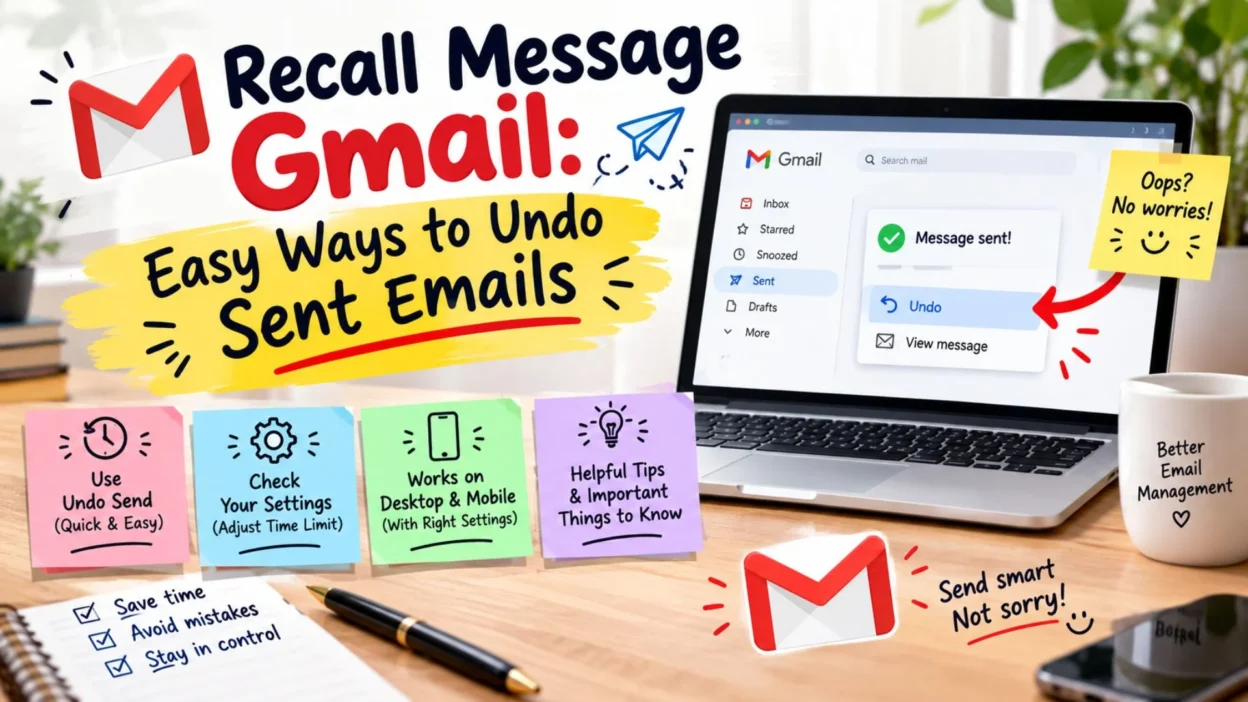
Sending an email and instantly noticing a mistake can be frustrating. Maybe you attached the wrong file, typed something incorrectly, or accidentally sent the message to the wrong person. That is where knowing how to recall message Gmail can be useful.
Gmail does not work exactly like some traditional email systems that offer a separate “Recall” command. Instead, Gmail provides an Undo Send feature that gives you a short window to cancel an email immediately after sending it. Once that window closes, the message normally cannot be pulled back from the recipient’s inbox through Gmail.
The good news is that the process is simple when you know where to look. Whether you are using Gmail for work, school, personal communication, or important documents, understanding this feature can help you avoid embarrassing mistakes.
Top Recall Message Gmail Tips
These quick tips can help you stop an email before it reaches the recipient.
- Gmail’s Undo Send option can cancel a newly sent email within the available cancellation period.
- Check the recipient, subject, attachment, and message before sending whenever possible.
- Gmail lets you choose a cancellation period of up to 30 seconds in its settings.
- If you notice a mistake immediately, look for the Undo option that appears after sending.
- The Undo option works only during the cancellation window you have selected.
- Once the cancellation period expires, Gmail generally cannot recall the email from the recipient’s inbox.
- A quick response can make the difference between successfully canceling an email and having to send a correction.
- If you sent the wrong attachment, use the cancellation window before sending a corrected version.
- For sensitive work emails, consider checking every recipient before clicking Send.
- Gmail’s Undo Send feature is useful for accidental messages, incorrect addresses, and unfinished emails.
Short Recall Message Gmail Solutions
Sometimes you only need a quick answer when an email goes out by mistake.
- Sent the wrong email? Click Undo immediately.
- Made a typo? Use Gmail’s Undo Send option if the window is still open.
- Wrong attachment? Cancel the email quickly and resend it correctly.
- Wrong recipient? Try Undo before the cancellation period ends.
- Need more time? Increase Gmail’s cancellation period in Settings.
- Accidentally clicked Send? Look for the Undo option at the bottom of the screen.
- Email sent too soon? Act immediately instead of waiting.
- Forgot an attachment? Undo the email and add the missing file.
- Spotted an error? Gmail may still let you cancel the message.
- Missed the Undo window? Send a short correction email.
Best Recall Message Gmail Methods for Sharing
If you are explaining Gmail’s email cancellation feature to someone else, these simple tips are easy to share.
- “If you just sent an email by mistake, check for the Undo option immediately.”
- “Gmail gives you a short chance to cancel an email after sending it.”
- “Open Gmail Settings and adjust the Undo Send cancellation period.”
- “If you often send emails too quickly, set the cancellation period to 30 seconds.”
- “Always check the recipient and attachment before sending important emails.”
- “The Gmail Undo option is your first step when you notice an immediate mistake.”
- “If the Undo window has expired, Gmail normally cannot pull the email back.”
- “For an accidental email, act quickly instead of refreshing or closing Gmail.”
- “Use Undo Send as a safety net, not as a replacement for checking your email.”
- “A few seconds of review can prevent a lot of email mistakes.”
One-Line Recall Message Gmail Ideas
These short lines work well for quick tips, notes, or social captions.
- Gmail sent it, but Undo might save it.
- Wrong email? Check Undo before anything else.
- One click too soon? Gmail may give you another chance.
- Sent too fast? Look for Undo.
- Wrong file attached? Stop it with Undo.
- Gmail mistakes can sometimes be undone.
- Check twice, send once.
- Your email safety net is called Undo Send.
- Spotted a mistake? Act before the timer ends.
- Thirty seconds can save an awkward email.
- Wrong recipient? React quickly.
- Forgot the attachment? Undo and fix it.
- A tiny mistake does not always need a big explanation.
- Before panic, check for Undo.
- Gmail gives you a brief second chance.
- Send carefully, but know where Undo is.
- The faster you notice the mistake, the better.
- Email regret? Check the Undo option.
- One accidental click does not always mean disaster.
- Keep calm and check Undo.
How to Recall a Message in Gmail After Sending
The most important thing to understand is that Gmail uses Undo Send rather than a traditional recall function. This feature temporarily holds the outgoing message, giving you a brief opportunity to cancel it.
- Send your email normally.
- Immediately look for the confirmation message that appears after sending.
- Find the Undo option in that notification.
- Select Undo before the cancellation period expires.
- Gmail will stop the message and return it to the compose window.
- Review the email and make any necessary changes.
- Correct the recipient, attachment, wording, or subject if needed.
- Send the corrected message when everything looks right.
This process is especially useful when you catch an error seconds after pressing Send.
How to Increase the Gmail Undo Send Time
Gmail allows users to adjust the cancellation period. If you frequently need a few extra seconds to catch mistakes, changing this setting can be helpful.
- Open Gmail on your computer.
- Select the Settings icon.
- Choose See all settings.
- Find the Undo Send section under the General tab.
- Look for the Send cancellation period option.
- Choose the available period you prefer.
- Gmail allows a cancellation period of up to 30 seconds.
- Scroll down and select Save Changes.
A longer cancellation period gives you more time to notice mistakes before the message is permanently sent.
Recall Message Gmail for Common Mistakes
Even careful people can send an email too quickly. These situations are where Gmail’s Undo Send feature can be especially useful.
- Sent an unfinished email? Use Undo and complete your message first.
- Added the wrong person? Cancel the email before the Undo window closes.
- Attached an outdated document? Undo the message and replace the file.
- Forgot an important detail? Cancel the email and add the missing information.
- Used the wrong subject line? Undo the message and correct it.
- Sent a draft accidentally? Use the cancellation option immediately.
- Noticed a spelling mistake? Undo the email and fix the wording.
- Selected the wrong attachment? Stop the message and attach the correct file.
- Sent before reviewing the message? Use the cancellation window for a final check.
- Accidentally pressed Send? Check for Undo instead of immediately panicking.
Recall Message Gmail for Work Emails
Work emails often contain attachments, deadlines, names, and other important details. A quick review can prevent unnecessary follow-up messages.
- Check every recipient before sending a business email.
- Confirm that the attachment matches the subject and message.
- Review dates, times, prices, and deadlines carefully.
- Use Gmail’s Undo Send option when you catch an immediate error.
- Keep the cancellation period at 30 seconds if you prefer more review time.
- Read important emails once before clicking Send.
- Double-check emails containing confidential business information.
- Make sure the correct version of a document is attached.
- Verify the email address when sending information to external contacts.
- If the email cannot be canceled, send a clear correction rather than hiding the mistake.
Recall Message Gmail for Wrong Attachments
Wrong attachments are one of the most common reasons people wish they could recall an email.
- Notice the wrong file immediately? Click Undo.
- Return to the message and remove the incorrect attachment.
- Add the correct document before sending again.
- Check the filename before attaching important files.
- Make sure the document is the final version.
- Review the attachment after adding it to the email.
- Avoid sending multiple confusing versions of the same file.
- If the email has already gone through, contact the recipient promptly.
- Explain the correction clearly if another email is necessary.
- Keep the corrected message short and professional.
Recall Message Gmail for Wrong Recipients
Sending an email to the wrong person can feel stressful, especially when the message contains private or work-related information.
- If you notice immediately, use Undo Send.
- Check the recipient field before resending the corrected email.
- Remove the incorrect address from the new message.
- Confirm autocomplete suggestions before selecting a contact.
- Be especially careful with similar names and email addresses.
- Avoid relying entirely on Gmail’s suggested contacts.
- For important emails, review the To, Cc, and Bcc fields.
- If the message has already been delivered, consider contacting the recipient.
- Ask the unintended recipient to disregard the message when appropriate.
- Do not assume Gmail can remove an already delivered email.
Recall Message Gmail When You Forgot an Attachment
Forgetting an attachment is easy, especially when writing an email in a hurry.
- Look for Undo immediately after sending.
- Return to the draft if Gmail successfully cancels the message.
- Add the missing attachment.
- Check that the file opens correctly before sending.
- Mention the attachment briefly in the email if necessary.
- Review the complete message before pressing Send again.
- Give important files clear names.
- Avoid attaching an older version by mistake.
- Keep commonly used files organized for faster email preparation.
- Create a final attachment check before sending important messages.
Recall Message Gmail for Students
Students frequently send assignments, applications, projects, and documents through Gmail. A short cancellation window can help catch small mistakes.
- Check the teacher or instructor’s email address carefully.
- Confirm that your assignment is attached.
- Make sure you attached the correct version.
- Review the subject before sending.
- Check that your name is included when required.
- Use Undo if you spot an error immediately.
- Avoid sending unfinished work accidentally.
- Open the attachment before sending important assignments.
- Check the deadline information in your message.
- If an incorrect email is already delivered, send a polite correction when necessary.
Recall Message Gmail for Personal Emails
Personal emails can also benefit from a quick review before they leave your inbox.
- Undo a message if you accidentally send it too early.
- Correct obvious spelling mistakes before resending.
- Check the recipient when sending personal information.
- Replace an incorrect photo or document before sending.
- Review emotional messages before clicking Send.
- Use the cancellation window to reconsider rushed wording.
- Make sure you selected the intended contact.
- Check whether the message contains the information you meant to share.
- Keep important personal emails clear and direct.
- Save important information separately instead of relying only on email recall.
What Happens When You Click Undo in Gmail?
When you select Undo during Gmail’s cancellation period, the message does not continue as a completed outgoing email. Instead, Gmail returns you to the compose screen so you can review or edit the message.
- Your message can return to the compose window.
- You can change the recipient.
- You can edit the text.
- You can replace an attachment.
- You can change the subject.
- You can add missing information.
- You can decide not to send the message at all.
- You can send the corrected version after reviewing it.
The important point is timing. Once the cancellation period ends, the Undo option is no longer available for that message.
Recall Message Gmail on Mobile
Gmail’s mobile app also provides an Undo option after sending an email. The exact appearance can vary depending on the device and app version.
- Send the email from the Gmail app.
- Watch for the confirmation notification after sending.
- Look for the Undo option.
- Tap Undo quickly if you notice a mistake.
- Review the message when it returns to editing.
- Correct the problem before sending again.
- If the Undo option disappears, the cancellation window has ended.
For important emails, slowing down for a few seconds before sending can be just as useful as knowing the Undo feature.
Gmail Recall vs. Email Correction
It helps to understand the difference between canceling a message and correcting one that has already been sent.
- Undo Send: Gives you a brief opportunity to cancel a newly sent message.
- Correction email: Used when the original message has already gone through.
- Editing: Lets you change the message before sending it again.
- Review: Helps prevent mistakes before they happen.
- Cancellation period: Determines how long Gmail gives you to use Undo.
If the cancellation period has expired, a correction email may be the practical next step.
Quick Gmail Sending Checklist
Before sending an important email, take a few seconds to check these details.
- Recipient
- Cc and Bcc fields
- Subject line
- Message wording
- Spelling
- Dates
- Links
- Attachments
- Attachment version
- Contact information
- Confidential details
A quick checklist can reduce the chances of needing to recall a message in the first place.
Recall Message Gmail: What to Do After the Undo Window
Sometimes you notice the mistake too late. If the Undo option has disappeared, Gmail generally cannot pull an already delivered message back from the recipient’s inbox.
In that situation, staying calm is more useful than repeatedly looking for a recall button.
- Send a brief correction if the mistake matters.
- Clearly explain what needs to be corrected.
- Provide the correct attachment when necessary.
- Avoid sending several confusing follow-up emails.
- If the wrong recipient received sensitive information, address the situation promptly.
- For minor spelling mistakes, a correction may not even be necessary.
- If the original email contains an incorrect detail, send the accurate information clearly.
- Keep your correction professional and concise.
- Review the new message carefully before sending it.
- Learn from the mistake and use Gmail’s Undo Send feature more deliberately next time.
What to Write After Missing the Recall Window
A simple correction can fix many ordinary email mistakes.
- “Please disregard my previous email. I’m sending the corrected version below.”
- “Apologies, I attached the wrong file to my previous message. Please use the attached version instead.”
- “Please ignore the previous email. I noticed an error and have corrected the information.”
- “Sorry for the confusion. Here is the updated document.”
- “Please disregard my last message. I sent it before completing the necessary edits.”
- “Apologies for the duplicate email. Please refer to this latest version.”
- “I noticed an error in my previous message. The correct information is below.”
- “Please use this updated attachment instead of the file from my previous email.”
How to Avoid Needing Gmail Recall
Knowing how to cancel an email is useful. However, preventing the mistake in the first place is even better.
- Add the recipient after writing the message when possible.
- Attach important files before writing the final sentence.
- Read the subject line before sending.
- Check the To, Cc, and Bcc fields.
- Confirm the attachment name and version.
- Review links before sending them.
- Check dates, times, and numbers.
- Avoid sending emotional messages immediately.
- Read important emails from beginning to end.
- Give yourself a few seconds before clicking Send.
- Keep Gmail’s Undo Send period at a setting that suits your workflow.
- Use drafts when an email requires extensive information.
- Save large or important documents with clear filenames.
- Check autocomplete suggestions carefully.
Frequently Asked Questions
Can I recall a message in Gmail?
Gmail provides an Undo Send feature rather than a traditional recall function. It gives you a short cancellation period immediately after sending. Once that period ends, you generally cannot pull the email back from the recipient’s inbox.
How long do I have to recall a message in Gmail?
Gmail allows you to select a cancellation period of up to 30 seconds. The available cancellation setting can be adjusted through Gmail Settings.
Where is the Undo button in Gmail?
After sending an email, Gmail displays a sending confirmation with an Undo option. Select it quickly if you want to cancel the message during the available cancellation period.
Can I recall an email after 30 seconds?
Once the selected cancellation period has expired, Gmail generally does not provide a way to recall the already sent message. If necessary, send a correction or clarification.
Can I recall an email from the Gmail mobile app?
Gmail’s mobile app provides an Undo option after sending. If you notice an error, use the option immediately before the cancellation period ends.
Can I increase the Gmail recall time?
You can increase Gmail’s Send cancellation period in Settings. Gmail allows a cancellation window of up to 30 seconds.
What should I do if I sent the wrong attachment?
If the Undo option is still available, cancel the message and replace the attachment. If the window has expired, send a corrected email with the right file and briefly explain the mistake.
Conclusion
Knowing how to recall message Gmail can save you from many common email mistakes. The key is understanding that Gmail’s solution is called Undo Send, which provides a short opportunity to cancel a newly sent message.
For the best protection, choose a cancellation period that gives you enough time to notice errors. A few extra seconds can help you catch a wrong recipient, missing attachment, typo, or incomplete message.
Still, no feature replaces a quick review. Check the recipient, subject, wording, attachments, and important details before sending. If the Undo window has already expired, stay calm and send a clear correction when necessary.
With the right Gmail settings and a simple checking habit, accidental emails become much easier to manage. Sometimes the best email recall strategy is simply giving yourself a moment to check before you click Send.

Noah Anderson is a content writer at MessagesfyHub, specializing in heartfelt messages, wishes, quotes, and greetings for every occasion. He is passionate about creating meaningful, easy-to-share content that helps people express their emotions with the right words.