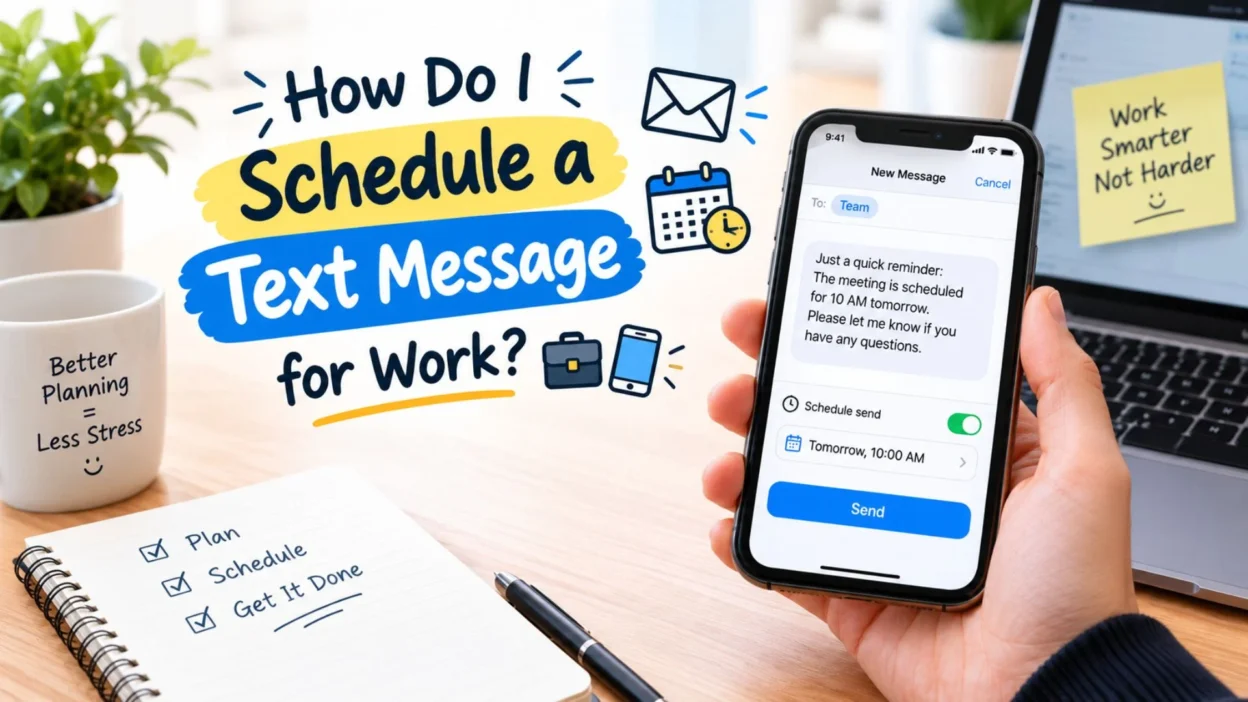
Scheduled texts can make work communication easier, especially when you already know when a reminder or update should arrive.
Instead of writing the message at the last minute, prepare it ahead of time. Then, schedule it for the appropriate moment.
Useful examples include:
- “Good morning! Just a reminder that our team meeting starts at 9 AM.”
- “Hi, just checking in about our meeting this afternoon.”
- “Reminder: Please send the updated document before the end of the day.”
- “Just a quick reminder about tomorrow’s appointment.”
- “Thanks for your help today. I’ll follow up with you tomorrow.”
- “Reminder: Our scheduled call begins in 30 minutes.”
For professional texts, keep the wording clear and respectful. Also, double-check the recipient before scheduling anything important.
Schedule a Text Message for Later 📅
Sometimes you know you want to send something, but the right time is hours away.
That is exactly where scheduling becomes useful.
For instance, you could write a message in the afternoon and schedule it for the evening. You could also prepare tomorrow’s reminder before going to bed.
Common situations include:
- Evening reminders
- Morning greetings
- Birthday messages
- Appointment alerts
- School reminders
- Work updates
- Event invitations
- Travel notifications
- Follow-up messages
- Holiday greetings
Instead of keeping the message in your head, write it down and schedule it.
That small habit can make your communication much easier.
How Do I Schedule a Text Message Without Forgetting? 🧠⏰
The main benefit of scheduled texting is simple: you can prepare now instead of relying on memory later.
Imagine you remember your friend’s birthday while working at 2 PM. You could write the message immediately and schedule it for midnight.
Similarly, you might remember an important reminder before going to sleep. Rather than setting another alarm, you can prepare the text for the next morning.
A simple routine works well:
- Write the message when you remember.
- Check the recipient carefully.
- Choose the correct date.
- Select the correct time.
- Review the wording.
- Schedule the message.
- Confirm that it appears as scheduled.
This approach reduces the chance of forgetting something important.
Schedule Birthday Texts in Advance 🎂🎉
Birthdays often arrive faster than expected. Fortunately, you can prepare the message early.
A scheduled birthday text can be sweet, funny, friendly, or professional depending on the person.
Try these ideas:
- “Happy Birthday! 🎉 Wishing you a year full of happiness, success, and amazing memories.”
- “Hope your birthday is filled with laughter, good food, and your favorite people.”
- “Happy Birthday! May today bring you plenty of reasons to smile.”
- “Wishing you another wonderful year ahead. Enjoy your special day!”
- “Happy Birthday! 🎂 Hope your day is everything you hoped for and more.”
Write it whenever you have a free moment. Then schedule it for the time you want.
Schedule Good Morning Texts ☀️💬
A scheduled morning message can be useful when you want to be thoughtful without sending a message too early.
You can prepare it the night before and choose a suitable morning time.
Here are some simple examples:
- “Good morning! ☀️ Hope your day starts with a smile.”
- “Morning! Wishing you a calm, happy, and productive day.”
- “Good morning! Take things one step at a time and enjoy your day.”
- “Rise and shine! Hope today brings you something wonderful.”
- “Sending you positive vibes for a beautiful morning.”
The message can be simple. A thoughtful sentence often works better than a long paragraph.
Schedule Good Night Texts 🌙💤
Scheduling is not limited to morning messages.
You can also prepare a good-night message earlier in the evening and arrange for it to arrive later.
Try these:
- “Good night! 🌙 Sleep well and wake up refreshed.”
- “Hope you have a peaceful night and a beautiful tomorrow.”
- “Good night! Leave today behind and enjoy some well-deserved rest.”
- “Sweet dreams and a calm night ahead.”
- “Rest well tonight. Tomorrow is another chance to do something great.”
This can be especially useful if you know you will be busy later.
Schedule Reminder Messages for Important Events 📌
Important dates are easy to forget, especially when your day is already busy.
A scheduled text can provide a simple reminder without requiring you to remember the exact moment.
For example:
- “Reminder: Your appointment is tomorrow at 11 AM.”
- “Don’t forget our dinner plans tonight.”
- “Reminder: The event begins at 7 PM.”
- “Please remember to bring your ID tomorrow.”
- “Your flight is tomorrow morning. Have everything ready tonight.”
- “Quick reminder about our call this afternoon.”
Keep reminder messages specific. Include the important detail, such as the time or location, when necessary.
Can I Schedule Multiple Text Messages? 📱
The ability to schedule multiple messages depends on your messaging app and device.
Google Messages supports scheduling messages individually. Each scheduled message can have its own delivery time.
For example, you might schedule one message for a birthday and another for a morning reminder.
On iPhone, Apple’s Send Later feature also lets you schedule individual iMessages. Apple states that multiple scheduled messages can appear in a conversation.
However, scheduling several messages does not mean you should send everything at once. Give each message a clear purpose.
How to Change the Time of a Scheduled Text ⏰✏️
Plans can change.
Maybe you scheduled a message for 8 AM but later realize 9 AM would be better. In that situation, you can manage the scheduled message before it is sent.
On Google Messages, select the scheduled message and choose the option to update its date or time.
On iPhone, you can touch and hold the scheduled message, then adjust its scheduled delivery time.
Before saving the change, check both the date and time.
A simple AM-versus-PM mistake could turn a thoughtful message into a very confusing one.
How to Send a Scheduled Message Immediately 🚀
Sometimes you schedule a message and then change your mind.
Maybe the person needs the information right away. Or perhaps the situation changed sooner than expected.
Google Messages allows users to send a scheduled message immediately instead of waiting for its scheduled time.
Apple also provides an option to send a scheduled iMessage immediately.
This means scheduling does not necessarily lock you into the original delivery time.
Common Mistakes to Avoid When Scheduling Texts ⚠️
Scheduling makes texting easier, but a quick review can prevent awkward mistakes.
Before scheduling, check these details:
- Make sure you selected the right person.
- Confirm the exact date.
- Double-check the delivery time.
- Check whether the time is AM or PM.
- Read the message once before sending.
- Make sure the wording matches the situation.
- Confirm that the message actually appears as scheduled.
Also, be careful with jokes or emotional messages. A message that sounds funny at noon might feel very different when received at midnight.
Scheduled Text vs. Regular Text 💬
A regular text sends when you tap the send button.
A scheduled text waits until the date and time you selected.
That difference is small, but it can be extremely useful.
Regular texting works best when the message needs to arrive immediately. Scheduled texting works better when timing matters but you want to prepare the message early.
For example:
- Regular text: “I’m outside now.”
- Scheduled text: “Good morning! Don’t forget our appointment today.”
- Regular text: “Can you call me?”
- Scheduled text: “Reminder: Please call me after your meeting.”
- Regular text: “Happy birthday!” sent immediately.
- Scheduled text: A birthday message prepared hours earlier for midnight.
The best option depends on when the recipient actually needs the message.
Quick Tips for Better Scheduled Texts 💡📱
A little preparation can make scheduled messaging much more reliable.
- Keep important messages clear.
- Use specific dates and times.
- Avoid scheduling sensitive messages without reviewing them.
- Check the recipient before confirming.
- Keep professional texts polite.
- Use short reminders when possible.
- Review emotional messages before scheduling.
- Update the schedule if your plans change.
- Keep your messaging app updated.
- Check the scheduled message before its delivery time.
Most importantly, remember why you are scheduling the message. The goal is convenience, better timing, and fewer forgotten messages.
How Do I Schedule a Text Message for Work? 💼📱
Scheduled texts can make work communication easier, especially when you already know when a reminder or update should arrive.
Instead of writing the message at the last minute, prepare it ahead of time. Then, schedule it for the appropriate moment.
Useful examples include:
- “Good morning! Just a reminder that our team meeting starts at 9 AM.”
- “Hi, just checking in about our meeting this afternoon.”
- “Reminder: Please send the updated document before the end of the day.”
- “Just a quick reminder about tomorrow’s appointment.”
- “Thanks for your help today. I’ll follow up with you tomorrow.”
- “Reminder: Our scheduled call begins in 30 minutes.”
For professional texts, keep the wording clear and respectful. Also, double-check the recipient before scheduling anything important.
Schedule a Text Message for Later 📅
Sometimes you know you want to send something, but the right time is hours away.
That is exactly where scheduling becomes useful.
For instance, you could write a message in the afternoon and schedule it for the evening. You could also prepare tomorrow’s reminder before going to bed.
Common situations include:
- Evening reminders
- Morning greetings
- Birthday messages
- Appointment alerts
- School reminders
- Work updates
- Event invitations
- Travel notifications
- Follow-up messages
- Holiday greetings
Instead of keeping the message in your head, write it down and schedule it.
That small habit can make your communication much easier.
How Do I Schedule a Text Message Without Forgetting? 🧠⏰
The main benefit of scheduled texting is simple: you can prepare now instead of relying on memory later.
Imagine you remember your friend’s birthday while working at 2 PM. You could write the message immediately and schedule it for midnight.
Similarly, you might remember an important reminder before going to sleep. Rather than setting another alarm, you can prepare the text for the next morning.
A simple routine works well:
- Write the message when you remember.
- Check the recipient carefully.
- Choose the correct date.
- Select the correct time.
- Review the wording.
- Schedule the message.
- Confirm that it appears as scheduled.
This approach reduces the chance of forgetting something important.
Schedule Birthday Texts in Advance 🎂🎉
Birthdays often arrive faster than expected. Fortunately, you can prepare the message early.
A scheduled birthday text can be sweet, funny, friendly, or professional depending on the person.
Try these ideas:
- “Happy Birthday! 🎉 Wishing you a year full of happiness, success, and amazing memories.”
- “Hope your birthday is filled with laughter, good food, and your favorite people.”
- “Happy Birthday! May today bring you plenty of reasons to smile.”
- “Wishing you another wonderful year ahead. Enjoy your special day!”
- “Happy Birthday! 🎂 Hope your day is everything you hoped for and more.”
Write it whenever you have a free moment. Then schedule it for the time you want.
Schedule Good Morning Texts ☀️💬
A scheduled morning message can be useful when you want to be thoughtful without sending a message too early.
You can prepare it the night before and choose a suitable morning time.
Here are some simple examples:
- “Good morning! ☀️ Hope your day starts with a smile.”
- “Morning! Wishing you a calm, happy, and productive day.”
- “Good morning! Take things one step at a time and enjoy your day.”
- “Rise and shine! Hope today brings you something wonderful.”
- “Sending you positive vibes for a beautiful morning.”
The message can be simple. A thoughtful sentence often works better than a long paragraph.
Schedule Good Night Texts 🌙💤
Scheduling is not limited to morning messages.
You can also prepare a good-night message earlier in the evening and arrange for it to arrive later.
Try these:
- “Good night! 🌙 Sleep well and wake up refreshed.”
- “Hope you have a peaceful night and a beautiful tomorrow.”
- “Good night! Leave today behind and enjoy some well-deserved rest.”
- “Sweet dreams and a calm night ahead.”
- “Rest well tonight. Tomorrow is another chance to do something great.”
This can be especially useful if you know you will be busy later.
Schedule Reminder Messages for Important Events 📌
Important dates are easy to forget, especially when your day is already busy.
A scheduled text can provide a simple reminder without requiring you to remember the exact moment.
For example:
- “Reminder: Your appointment is tomorrow at 11 AM.”
- “Don’t forget our dinner plans tonight.”
- “Reminder: The event begins at 7 PM.”
- “Please remember to bring your ID tomorrow.”
- “Your flight is tomorrow morning. Have everything ready tonight.”
- “Quick reminder about our call this afternoon.”
Keep reminder messages specific. Include the important detail, such as the time or location, when necessary.
Can I Schedule Multiple Text Messages? 📱
The ability to schedule multiple messages depends on your messaging app and device.
Google Messages supports scheduling messages individually. Each scheduled message can have its own delivery time. (support.google.com)
For example, you might schedule one message for a birthday and another for a morning reminder.
On iPhone, Apple’s Send Later feature also lets you schedule individual iMessages. Apple states that multiple scheduled messages can appear in a conversation. (support.apple.com)
However, scheduling several messages does not mean you should send everything at once. Give each message a clear purpose.
How to Change the Time of a Scheduled Text ⏰✏️
Plans can change.
Maybe you scheduled a message for 8 AM but later realize 9 AM would be better. In that situation, you can manage the scheduled message before it is sent.
On Google Messages, select the scheduled message and choose the option to update its date or time. (support.google.com)
On iPhone, you can touch and hold the scheduled message, then adjust its scheduled delivery time. (support.apple.com)
Before saving the change, check both the date and time.
A simple AM-versus-PM mistake could turn a thoughtful message into a very confusing one.
How to Send a Scheduled Message Immediately 🚀
Sometimes you schedule a message and then change your mind.
Maybe the person needs the information right away. Or perhaps the situation changed sooner than expected.
Google Messages allows users to send a scheduled message immediately instead of waiting for its scheduled time. (support.google.com)
Apple also provides an option to send a scheduled iMessage immediately. (support.apple.com)
This means scheduling does not necessarily lock you into the original delivery time.
Common Mistakes to Avoid When Scheduling Texts ⚠️
Scheduling makes texting easier, but a quick review can prevent awkward mistakes.
Before scheduling, check these details:
- Make sure you selected the right person.
- Confirm the exact date.
- Double-check the delivery time.
- Check whether the time is AM or PM.
- Read the message once before sending.
- Make sure the wording matches the situation.
- Confirm that the message actually appears as scheduled.
Also, be careful with jokes or emotional messages. A message that sounds funny at noon might feel very different when received at midnight.
Scheduled Text vs. Regular Text 💬
A regular text sends when you tap the send button.
A scheduled text waits until the date and time you selected.
That difference is small, but it can be extremely useful.
Regular texting works best when the message needs to arrive immediately. Scheduled texting works better when timing matters but you want to prepare the message early.
For example:
- Regular text: “I’m outside now.”
- Scheduled text: “Good morning! Don’t forget our appointment today.”
- Regular text: “Can you call me?”
- Scheduled text: “Reminder: Please call me after your meeting.”
- Regular text: “Happy birthday!” sent immediately.
- Scheduled text: A birthday message prepared hours earlier for midnight.
The best option depends on when the recipient actually needs the message.
Quick Tips for Better Scheduled Texts 💡📱
A little preparation can make scheduled messaging much more reliable.
- Keep important messages clear.
- Use specific dates and times.
- Avoid scheduling sensitive messages without reviewing them.
- Check the recipient before confirming.
- Keep professional texts polite.
- Use short reminders when possible.
- Review emotional messages before scheduling.
- Update the schedule if your plans change.
- Keep your messaging app updated.
- Check the scheduled message before its delivery time.
Most importantly, remember why you are scheduling the message. The goal is convenience, better timing, and fewer forgotten messages.
Best Times to Schedule a Text Message ⏰
Scheduling a text can make everyday communication much easier. You can prepare your message earlier and let it send at the right moment.
Morning Messages 🌅
A scheduled morning text works well for:
- Good morning wishes
- Work reminders
- Daily check-ins
- Study reminders
- Motivational messages
- Appointment reminders
Scheduling the message at a suitable time helps you avoid sending it too early or forgetting it later.
Birthday Messages 🎂
Birthdays are another great reason to schedule a text. You can write the message in advance and set it for midnight or another preferred time.
This is especially useful if you are busy or worried about forgetting someone’s special day.
Work Messages 💼
You can also schedule professional texts for:
- Meeting reminders
- Project updates
- Appointment confirmations
- Team notifications
- Follow-up messages
- Important deadlines
However, always check the scheduled time before sending. A message sent at the wrong hour can create confusion.
Can You Schedule a Text for Someone Else? 📱
Yes, you can prepare a message for another person and schedule it from your phone. The recipient does not need to use the same scheduling feature.
For example, you could schedule a birthday message for a friend several days before their birthday. Your phone will handle the sending at the selected time.
Can You Schedule a Text Without Another App? 🔒
In many cases, you can schedule messages using the messaging features already available on your phone.
Android phones may offer scheduling directly inside the messaging app. iPhone users can also use built-in automation features for certain scheduled messages.
Because features can vary by phone model and software version, check the options available in your messaging app.
How Far Ahead Can You Schedule a Text? 📅
The available scheduling period depends on your phone and messaging app.
Some devices allow you to schedule a message several days ahead. Others may provide more flexible scheduling options.
Before relying on a scheduled message, test the feature once. This helps you understand how your specific phone handles scheduled texts.
Copy-and-Paste Scheduled Text Messages 💬
If you need some quick messages, these examples can help:
- “Good morning! Hope you have a wonderful day ahead. ☀️”
- “Just a reminder about our meeting today. See you soon!”
- “Happy birthday! Wishing you lots of happiness and success. 🎂”
- “Don’t forget about your appointment tomorrow. ⏰”
- “Good night! Sleep well and have beautiful dreams. 🌙”
- “Just checking in to see how everything is going. 😊”
- “Hope your day is going great. Keep smiling! ✨”
- “Remember to take a break and relax today. 💙”
Useful Scheduled Text Ideas ✨
You can schedule different types of messages depending on the situation.
For Friends 👫
Schedule funny reminders, birthday wishes, event details, or simple check-ins.
For Family ❤️
Use scheduled messages for good morning wishes, important reminders, celebrations, and caring messages.
For Work 💼
Prepare meeting reminders, updates, deadlines, and follow-up messages in advance.
For Personal Reminders 📝
Schedule texts to yourself when you need an extra reminder for something important.
What If a Scheduled Text Does Not Send? ⚠️
Sometimes a scheduled message may not send as expected. First, check whether the message is still listed as scheduled.
Next, make sure your phone has a working mobile or internet connection, depending on how the messaging feature works.
Also, check whether your phone is switched on at the scheduled time. Finally, confirm that the recipient’s number is correct.
Common Problems and Quick Fixes 🛠️
The Scheduling Option Is Missing
Your messaging app may not support scheduling, or the feature may be located somewhere else.
Try opening the message options or checking the send button for additional features.
The Message Sent at the Wrong Time
Check your phone’s date, time, and time-zone settings. Incorrect settings can affect scheduled actions.
The Scheduled Message Disappeared
Open your scheduled messages and check whether the message was edited, canceled, or already sent.
The Message Failed to Send
Check your connection, recipient number, messaging settings, and available mobile service.
Frequently Asked Questions ❓
Can I schedule a text message for later?
Yes. Many modern messaging apps provide a scheduling feature that lets you choose a future date and time.
Can I edit a scheduled text?
In many messaging apps, you can open the scheduled message and change its content or delivery time before it sends.
Can I cancel a scheduled text?
Usually, yes. Open the scheduled message and look for an option to delete, cancel, or unschedule it.
Does my phone need to be on?
Some scheduling features depend on your phone and messaging service. Keeping your device powered on and connected is the safest approach.
Can I schedule multiple text messages?
Yes, where supported. You can prepare several messages and assign different dates or times to them.
Final Thoughts 💬
Knowing how do I schedule a text message can make communication much easier. Instead of waiting for the perfect moment, you can prepare your message ahead of time and choose when it should be sent.
Whether you need to remember a birthday, send a morning greeting, remind someone about an appointment, or manage work communication, scheduled texts can save time.
Before scheduling an important message, always double-check the recipient, message content, date, and time. Also, remember that features can differ between phones and messaging apps.
Once you understand how scheduling works on your device, it becomes a simple way to stay organized and avoid forgetting important messages. 📱⏰

Noah Anderson is a content writer at MessagesfyHub, specializing in heartfelt messages, wishes, quotes, and greetings for every occasion. He is passionate about creating meaningful, easy-to-share content that helps people express their emotions with the right words.